

You may be surprised at the full functionality of your Honda infotainment system, especially if you’ve recently purchased a new model. Explore all the cool tech features of your vehicle with this guide from your local Honda dealer.
6 Tips to Get the Most From Your Honda Infotainment System: Advice From Your Honda Dealer
Honda’s infotainment system is a cornerstone of modern driving, integrating advanced technology to enhance convenience, connectivity, and safety. Over the years, Honda has continuously evolved its infotainment systems to offer drivers a more intuitive and connected experience. With each new model, improvements in interface design, functionality, and integration capabilities have made it easier for drivers to stay informed and entertained while on the road.
1. Pair Your Cell Phone With HandsFreeLink
This step allows you to stream from your phone, answer calls, and even pinpoint your parking spot using Bluetooth through Honda’s HandsFreeLink system. Click the Home icon, which looks like a small house, to get to the home screen. Confirm that your phone is set to discoverable mode. Next, select Search for Devices. When a list of available devices appears, select the name of your phone.
2. Take Advantage of Built-In Google
Many models come with integrated Google apps, making it easy to access your favorite features on the go. Standard touchscreen software includes the Google Play Store, Google Maps, and Google Assistant, and you can download many third-party apps such as Audible and Spotify from Google Play.
Signing in with your Google account lets you personalize your experience. For example, you can save your home address and other frequent locations in the navigation system. Built-in Google is also compatible with your vehicle’s Apple CarPlay and Android Auto smartphone connectivity systems.
3. Customize Your Settings
Press the Home button, then General Settings to fine-tune the settings of your infotainment system. This opens a menu where you can adjust the system’s display language, local date and time, system volume, touch panel sensitivity, data sharing settings, camera settings, voice controls, and other key features. Setting up the infotainment system with your preferences can ensure you feel comfortable using the tech in your new Honda.
4. Ask Siri
You can use Apple’s Siri Eyes Free feature with your vehicle’s infotainment system. Simply press the Talk button on your steering wheel, which has an icon that looks like a person speaking. The same icon appears on the touchscreen when this feature is activated. Ask Siri to play your favorite podcast, set up a meeting, send a text, or navigate to your next destination.
5. Reset the System
Maybe you want to start from scratch with your infotainment system. Return to the factory settings so you can personalize everything exactly the way you want it.
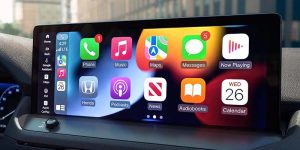
6. Connect With Apple CarPlay
Mirror your smartphone on your Honda’s touchscreen with this useful feature. Plug your phone into the driver’s side USB port and select the “Phone” icon to get started.
Try out the state-of-the-art tech in the Honda lineup today. Visit Carl Hogan Honda in Columbus, MS to test drive your new car, truck, or SUV.
Ready to experience the full potential of your Honda’s infotainment system? Schedule a demo with us at Carl Hogan Honda or visit our dealership in Columbus, MS to get hands-on with the technology and receive expert assistance. Our team is here to help you make the most of your vehicle’s capabilities.
Connect with us


